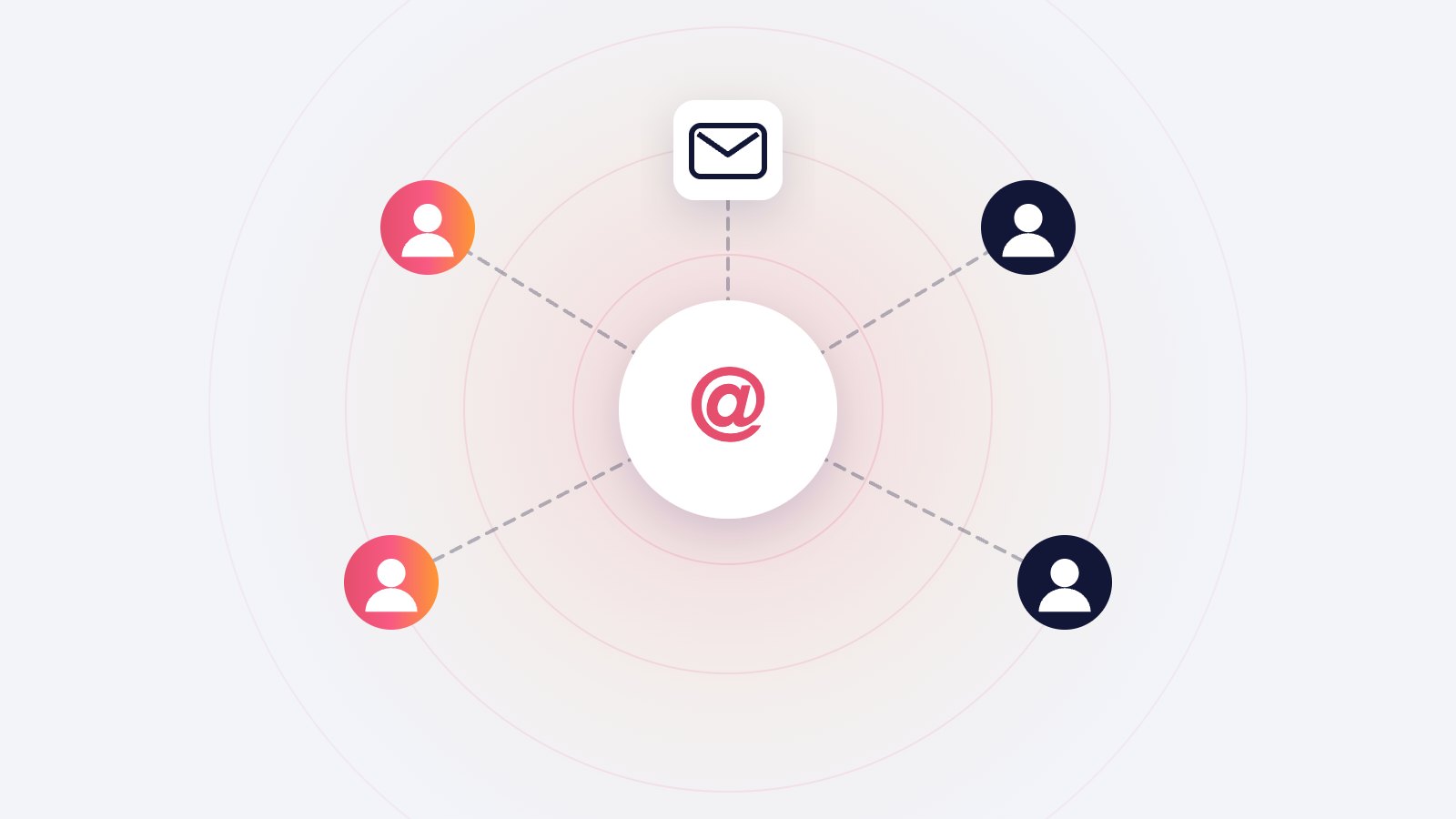
Yes. A small team can run support@ from Gmail in three common ways: a Google Group that delivers to everyone (optionally as a Collaborative Inbox), a separate support@ mailbox shared through Gmail delegation, or an alias that people send from their own accounts. For two to five people, a separate support@ mailbox with delegation is usually the simplest setup that keeps one shared history.
What are the ways to run support@ in Gmail?
| Setup | How it works | Good for | Watch out for |
|---|---|---|---|
| Google Group | support@ is a group; mail goes to every member | Several people who all need to see incoming mail | Replies go out from each person’s own account, so the history is split across inboxes |
| Group as Collaborative Inbox | The same group, with assigning and marking conversations as done | Teams that want simple ownership without a helpdesk | Work happens in the Google Groups interface, not in Gmail itself |
| Shared mailbox with delegation | support@ is its own account; teammates open it from their own Gmail | Two to five people who want one shared history | On Google Workspace, an administrator must allow delegation |
| Alias (“Send mail as”) | support@ is an alias; one person receives and replies as support@ | A founder answering alone | Does not scale past one person |
Google describes the Collaborative Inbox as a group where members can assign a conversation to themselves or someone else and mark it as complete, needing no further action, or a duplicate (Google Workspace Learning Center: Use a group as a Collaborative Inbox, checked 30 September 2026).
Which setup fits a team of two to five people?
Use these rules of thumb:
- One person answers everything: an alias on your own account is enough.
- Two to five people share the work: a separate support@ mailbox with delegation. Everyone sees the same threads, the same sent replies and the same drafts.
- Several people, and you want to assign conversations: a Google Group as a Collaborative Inbox.
- You need reporting per person, service-level timers or many channels: you have probably outgrown Gmail, see the last section.
The deciding question is whether you need one shared history. If a customer writes back three weeks later, can the person who opens it see what was said before? With a shared mailbox, yes. With a plain group, only if the same person answers.
How do you set up a shared support@ mailbox?
- Create support@ as its own account in Google Workspace, not as a group or alias.
- Ask your administrator to allow mail delegation, if it is not on already. Google notes that on Workspace domains delegation has to be turned on.
- In the support@ account, add each teammate as a delegate (in Settings, under Accounts, “Grant access to your account”).
- Each teammate opens support@ from their own Gmail, through the account menu.
- Agree on labels and ownership before the first busy week (next two sections).
Google’s help page explains what a delegate can do: “A delegate is someone who can read, send, and delete emails in your account for you.” When a delegate sends, “their email address appears”, so customers can see which person answered (Gmail Help: Delegate and collaborate on email, checked 30 September 2026). Personal Gmail accounts allow up to 10 delegates; work accounts allow many more.
How do you stop two people answering the same email?
Double replies are the most common problem with a shared inbox. A few conventions prevent most of them:
- Claim before you write. Add a label with your name (for example “Owner: Lisa”) before you start a reply.
- Split by time, not by topic. Lisa takes mornings, Tom afternoons. Simpler than routing by subject.
- Reply only from support@. Personal replies split the history and the customer does not know where to write back.
- Leave a note for handovers. A one-line note (“waiting on warehouse, reply by Thursday”) in a shared document, so the next person knows the state.
In a Collaborative Inbox, the built-in “take” and “assign” actions do the claiming for you.
Which labels and filters does a support@ inbox need?
Keep it small. Four labels cover most small teams:
| Label | Meaning |
|---|---|
| Owner: [name] | Someone is on it |
| Waiting | Waiting on the customer or a colleague; note what for |
| Urgent | Blocked customer: payment, access, wrong order |
| Done | Answered, nothing more to do |
Add filters so the inbox only holds customer mail: send order notifications, payment receipts, courier updates and newsletters to their own labels, skipping the inbox. How to answer customer email faster without lowering quality covers the full sorting and batching routine.
How should replies look to the customer?
- From name: “Acme Support” or “Lisa at Acme”. Pick one style and use it for everyone.
- Signature: a shared signature on the support@ account, with a first name added by hand if you sign personally.
- One address: every reply comes from support@, so customers always write back to the shared inbox.
If you send as support@ from a personal Gmail address instead, some mail programs show the real address too. Google’s help page gives the example “From [email protected] on behalf of [email protected]” (Gmail Help: Send emails from a different address or alias, checked 30 September 2026).
What changes for support addresses on other providers?
If support@ lives with another provider and you reply to it from a personal Gmail account with “Send mail as”, note Google’s announcement on the same help page: “Starting January 2027, Gmail will no longer support the ‘Send as’ feature for third-party email addresses, such as @yahoo.com or @outlook.com.” Google Workspace aliases and other Gmail addresses you own are not affected. If your setup depends on it, move support@ to your own domain in Workspace before then.
When have you outgrown Gmail for support?
Gmail works well for a small team longer than most people expect. Signs it is time for a helpdesk:
- You need to report response times per person or per category every week
- Conversations regularly need three or more people
- You answer on several channels (chat, social, phone) and want one queue
- You need timers and escalation rules that run without anyone watching
Until then, a shared mailbox with clear conventions is cheaper and simpler.
Can drafting software work with a shared support@ inbox?
Yes, if it drafts in the mailbox itself. ReplyPen connects to a shared address like support@ the same way as a personal mailbox, and leaves a Draft in the thread for each customer email, so anyone who works from that mailbox sees it. Newsletters, receipts and notifications are skipped, and each Draft comes with a Check note listing the help pages and past replies it used. Today one mailbox has one voice, and inviting teammates into the ReplyPen web app is coming.