In this article
- What does an AI email reply tool actually do?
- What kinds of AI email reply tools are there?
- How does the AI write the reply?
- What is grounding, and why does it matter?
- Who presses send: you or the tool?
- How does it learn your tone and your answers?
- What can go wrong with AI replies to customers?
- What should you check before choosing one?
- How are AI email reply tools priced?
- How can you test one without risk?
- Where does ReplyPen fit?
- Related reading
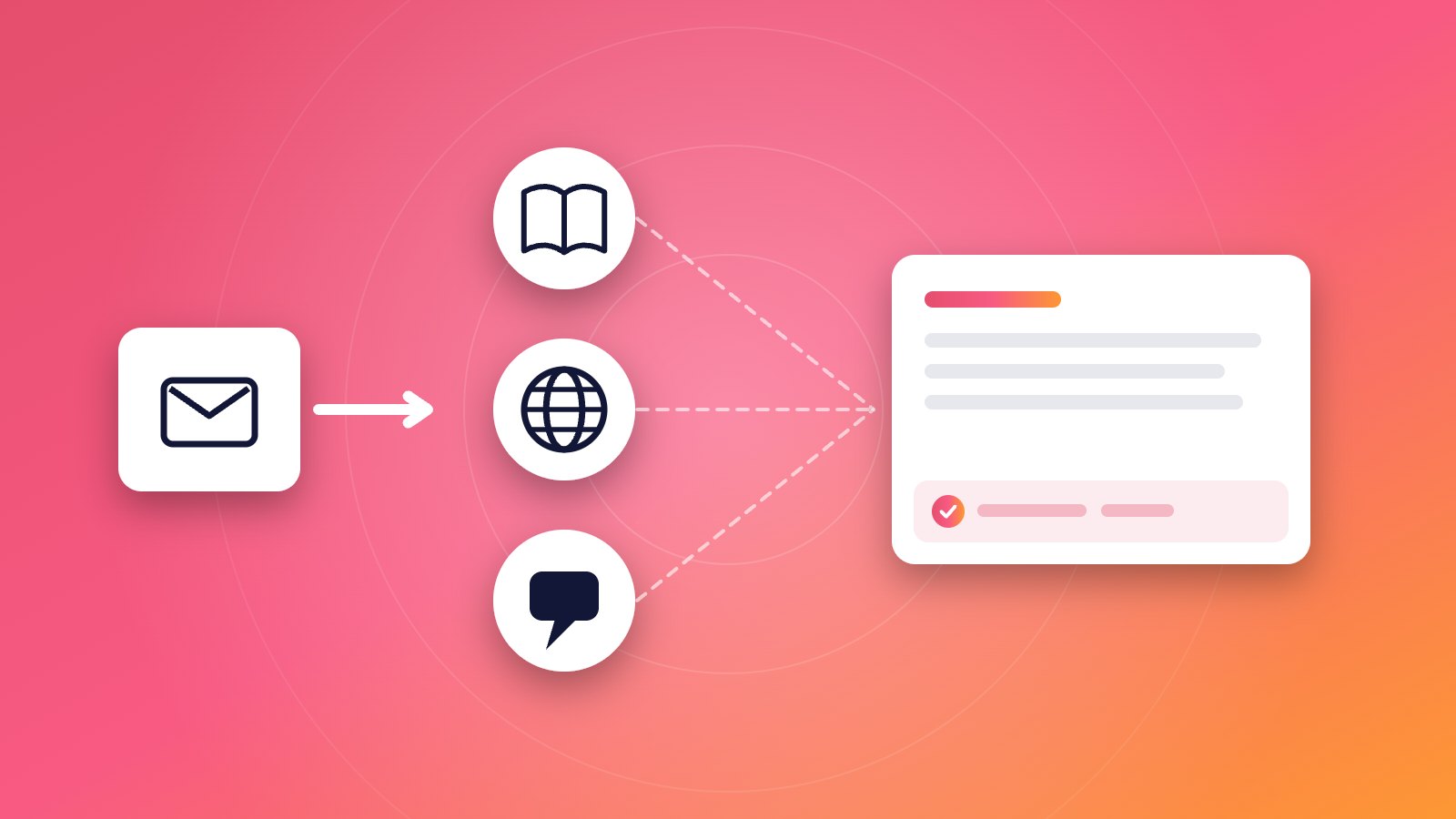
An AI email reply tool reads an incoming email, gathers context such as your help pages, earlier replies and customer records, and uses a language model to write a reply for you to review or send. How good the replies are depends less on the model than on two things: what the tool reads before it writes, and whether you can see and correct what it used.
What does an AI email reply tool actually do?
Most tools follow the same sequence, even when the screens look different.
- Trigger. A new email arrives, or you press a button in the compose window.
- Sort. Some tools decide first whether the email needs a reply at all, and skip newsletters, receipts and notifications.
- Gather context. The tool reads what it has access to: the thread, and depending on the tool, your past replies, help pages, website, files or other systems.
- Write. A language model writes the reply from the email and the gathered context.
- Place. The reply appears somewhere you can act on it: a draft in your mailbox, a panel next to the email, or a ticket in a helpdesk.
- Review and send. You read it, edit it and send it. Some tools can also send on their own for emails you choose.
- Learn. Better tools notice what you changed before sending, and use it next time.
Steps 3 and 7 are where tools differ most, and they decide whether the replies save you time.
What kinds of AI email reply tools are there?
Four broad kinds, which overlap at the edges:
| Kind | Who starts the reply | What it reads | Where the reply appears | Fits best |
|---|---|---|---|---|
| Writing features built into your email | You, with a prompt; Gmail can also suggest a reply | The thread, and in some cases your other mail and files | The compose window | Occasional replies, personal email |
| Inbox tools that draft for your whole mailbox | The tool, when email arrives | Your mailbox and sent mail | Your drafts folder or the tool’s own app | Busy personal inboxes |
| AI inside a helpdesk | The helpdesk, per ticket | Help center articles and ticket history | The helpdesk | Teams that already run a helpdesk |
| Support reply tools for business email | The tool, when a customer email arrives | Help pages, website, past replies, and connected systems | Your Gmail or Outlook drafts | Small businesses answering customers from a normal inbox |
The built-in features are worth knowing, because they are often already included in what you pay for. In Gmail, “Help me write” writes a draft from a prompt you type, and Google’s help page says it can take details from your other emails and Drive files and shows them under a Sources button (Gmail Help: Draft emails with Gemini in Gmail, checked 30 September 2026). In Outlook, “Draft with Copilot” writes a draft from your prompt, with settings for tone and length (Microsoft Support: Draft an email message with Copilot in Outlook, checked 30 September 2026). Gmail can also suggest a reply at the bottom of an email you open, in English and on eligible plans (Gmail Help: Use Suggested Replies in Gmail, checked 30 September 2026). Neither is built around a support inbox: they only know your refund policy if it happens to be in your mail or files.
How does the AI write the reply?
A language model writes text by predicting what comes next, word by word, based on patterns learned from a very large amount of text. That is why the replies read smoothly: fluent, polite, well-structured email is exactly the pattern it has seen most.
It also explains the main weakness. The model does not look facts up unless the tool gives it something to read. Asked about your returns window with nothing to go on, it writes the most likely-sounding answer, which may be 30 days when yours is 14. The US standards body NIST calls this “confabulation”: “the production of confidently stated but erroneous or false content” (NIST AI 600-1, July 2024).
Why AI answers sound right and still get the facts wrong explains this in more depth, with the mistakes that show up most in customer email.
What is grounding, and why does it matter?
Grounding means the tool reads your own sources before it writes, and bases the reply on them. It is the difference between a reply that sounds right and one that is right for your business.
Typical sources, from the easiest to connect to the deepest:
| Source | What it gives the reply |
|---|---|
| The email thread | What the customer asked, and what was said before |
| Your past replies | How you answered this before, and how you write |
| Your help center | Policies, steps and product details you have already published |
| Your website | Prices, shipping, opening hours, product pages |
| Files | Price lists, terms, manuals |
| Connected systems | Order status, subscription details, account data |
| Your code base | How a software product actually behaves, for technical questions |
A short example. A customer writes: “I bought the annual plan last week, can I still get my money back?”
Without grounding: Absolutely! We offer a 30-day money-back guarantee on all plans. Just reply to this email and we’ll process your refund right away.
Grounded in a help article: Yes. Annual plans can be refunded in full within 14 days of purchase, and you bought yours 6 days ago. Reply to confirm and we’ll refund it to the card you paid with; it usually shows within a week.
The first reply is friendly and wrong. The second answers the question with the right rule and applies it to the customer. When you compare tools, ask which sources each one reads for every email, and whether you can see which ones it used for a given reply.
Who presses send: you or the tool?
Most tools write drafts that a person sends. Some can also send replies on their own, usually for emails you choose by rule.
Drafts are the safer default for customer email. A wrong answer in a draft costs you an edit; a wrong answer that was sent costs you a correction email, a confused customer and sometimes money. Sending on its own makes sense only for narrow kinds of email that the tool has handled correctly many times. Draft or auto-send: when should AI send customer email itself? sets out how to decide, and which emails should always stay with a person.
How does it learn your tone and your answers?
“Learns your tone” usually means the tool studies replies you have already sent and copies measurable habits: greeting, sign-off, length, formality, recurring phrases. Some tools also watch how you edit their drafts and adjust.
Two questions separate useful learning from a slogan:
- Can you see what it learned? A written profile you can read and correct is easier to trust than a hidden style.
- Does a correction last? If you fix the same mistake every week, the tool is not learning from your edits.
What “learns your tone” actually means in an AI email tool covers the methods, their limits, and how to test them on your own replies.
What can go wrong with AI replies to customers?
Most problems fall into a few groups. Knowing them tells you what to check.
| Problem | Example | What prevents it |
|---|---|---|
| Invented facts | A refund window, price or delivery date that is not yours | Grounding, and checking facts before sending |
| Out-of-date facts | Last year’s shipping times from an old reply | Keeping sources current; preferring the help center over old mail |
| Promises you did not make | “We’ll refund you today” when refunds need approval | Drafts only for anything involving money or dates |
| Answering the wrong question | A reply about delivery to someone asking about returns | Reading the draft against the customer’s actual question |
| Wrong tone for the moment | A cheerful reply to a complaint | Tone rules for complaints; a person on sensitive email |
| Replying to mail that needs none | A polite answer to a newsletter or an auto-reply | Automatic skips and your own rules |
Responsibility does not move to the software. In 2024 a Canadian tribunal held Air Canada responsible for wrong refund information its website chatbot gave a customer (Moffatt v. Air Canada, 2024 BCCRT 149). Whatever a tool writes in your name is your answer.
What should you check before choosing one?
A short list of questions to put to any tool, including the one built into your email:
- What does it read for each email? Only the thread, or also your help pages, website and past replies?
- Can you see what it used? For one specific reply, can you tell which article or past email the answer came from?
- Where do replies appear? In your own mailbox, or in a new app or helpdesk you would have to move to?
- What does it skip? Does it write replies to newsletters and notifications, or only to customers?
- What happens when you correct it? Does the correction show up next time, and can you see it written down?
- Who sends? Drafts only, or can it send, and is sending off until you choose?
- Where is your email stored, and for how long? And is it used to train anyone’s models?
- How is it priced? Per user, per email, per resolved ticket? Work out the cost for your own volume.
How are AI email reply tools priced?
Three pricing units are common, and the cheapest one depends on your volume and team size.
| Unit | You pay for | Works out well when |
|---|---|---|
| Per user | Each person with access, per month | Few people answer a lot of email |
| Per email or conversation | Each email the tool writes a reply for | Many people share an inbox, or volume changes by season |
| Per resolution | Each ticket the tool closes without a person | You let it answer on its own and trust how it counts a “resolution” |
Built-in writing features are usually part of a paid email or office plan, so they can look free. Whatever the unit, work out a normal month for your own inbox: how many customer emails, how many people, and how many of those emails the tool would actually handle. Check what counts: whether skipped mail, follow-ups in the same thread, or failed attempts are billed.
How can you test one without risk?
Run it next to your normal work for a week before you rely on it.
- Connect it in draft-only mode. Nothing goes to a customer without you.
- Answer as usual, but open the draft first for each customer email.
- Sort each draft: sent as it was, sent after small edits, or rewritten.
- Note the reason for each rewrite: wrong fact, missing fact, wrong tone, wrong question.
- At the end of the week, look at the reasons. Wrong or missing facts point to sources the tool cannot see. Tone problems usually improve with corrections. If a whole kind of email is always rewritten, keep that kind away from the tool.
The share of drafts you send unchanged is the most honest single number for whether a tool saves you time.
Where does ReplyPen fit?
ReplyPen is a support reply tool for small businesses. For each customer email it leaves a Draft in the same thread in your Gmail or Outlook, written from your help pages, website and past replies. Under each Draft, a Check note lists what it looked at, so you can see where an answer came from before you send. It skips newsletters, receipts, notifications and auto-replies, keeps a Tone profile and a Knowledge log you can read and correct, and learns from your edits.
Today ReplyPen writes Drafts only: you send every reply. Sending on its own for emails you choose is planned for a later version. Pricing is €0.25 per conversation, where a conversation is one customer email thread in which you use a Draft; follow-ups in the same thread, Drafts you never send and email skipped by your rules do not count. That is the pricing at launch: ReplyPen is opening to new teams from a waiting list, and the first 7 days will be free, without a card.