
Install it
- In the last step of setup, click Download add-in file. Missed it? The same steps are in Settings → Mailbox in the app.
- Click Open Outlook add-ins and sign in with your Outlook account if Microsoft asks.
- Choose My add-ins, scroll down and click Add a custom add-in, then Add from file.
- Pick the file you downloaded and click Install. Outlook warns you to install add-ins only from a source you trust; this file comes straight from ReplyPen.
- Close the add-ins window and refresh Outlook.
Your organization blocks custom add-ins? The last setup step has a message you can send to your Microsoft 365 admin, who can install ReplyPen for you or your whole team.
Where is ReplyPen in Outlook?
ReplyPen does not show up as its own button above the email at first. Outlook puts new add-ins under Apps:
- Open any email.
- Click Apps, the grid icon in the row of buttons on the email or in the ribbon at the top.
- Choose ReplyPen. The panel opens next to the email.
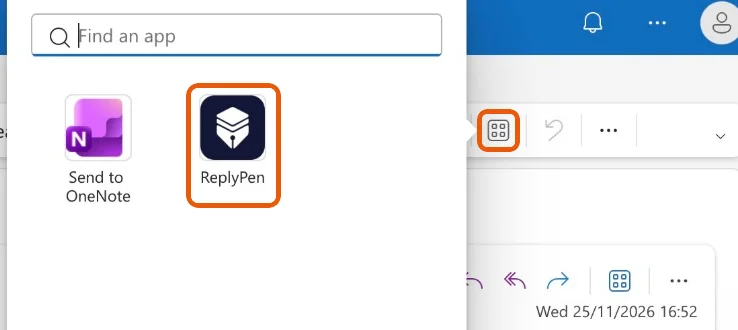
In classic Outlook for Windows, ReplyPen sits on the Home tab, or under All Apps. It can take up to a day to show up there.
Keep ReplyPen on every email
Pin it once and ReplyPen gets its own button on the email and in the ribbon:
- Click Apps in the ribbon at the top (Microsoft also calls it More apps).
- Right-click ReplyPen and choose Pin.
More in Microsoft’s guide Use add-ins in Outlook.
The first time you open it
Microsoft asks you to accept that ReplyPen may see who you are. It may say the publisher is unverified: ReplyPen is not listed in Microsoft’s add-in store yet. ReplyPen only uses this to match you to the mailbox you connected.
The panel says “Not connected”
ReplyPen does not read the mailbox that is open in Outlook. Open the mailbox you connected in setup, or click Connect to ReplyPen to connect this one. Sure it is the right mailbox? Reconnect it in Settings → Mailbox, then click I already connected it · Refresh in the panel.
Personal Outlook.com or Hotmail address
The add-in works with Microsoft 365 work or school accounts only. With a personal Outlook.com or Hotmail address it can’t connect to ReplyPen yet. Drafts still arrive in Outlook as usual.
Do I need the add-in?
No. Drafts land in the Outlook thread without it, also in Outlook on your phone. You need the add-in to see the Check note, rate a draft, ask for a rewrite, answer a draft’s questions and use Write my reply.