
From Gmail or Outlook: Tell ReplyPen something
- In Gmail, open the ReplyPen add-on. With no email open it shows Tell ReplyPen something; with an email open, use the ⋮ menu. In Outlook, open the ReplyPen add-in on any email, click ⋯ (More actions) and pick Tell ReplyPen something.
- Under What should ReplyPen know?, write it in plain words, for example “From 1 December we close at 17:00 on Saturdays”.
- Click Send. The panel answers “Thanks, ReplyPen got it” and “You’ll find it in Learning to confirm.”
What you told ReplyPen shows on the Learning page, under What you told ReplyPen in Gmail (or in Outlook).
From the app: Add or update knowledge
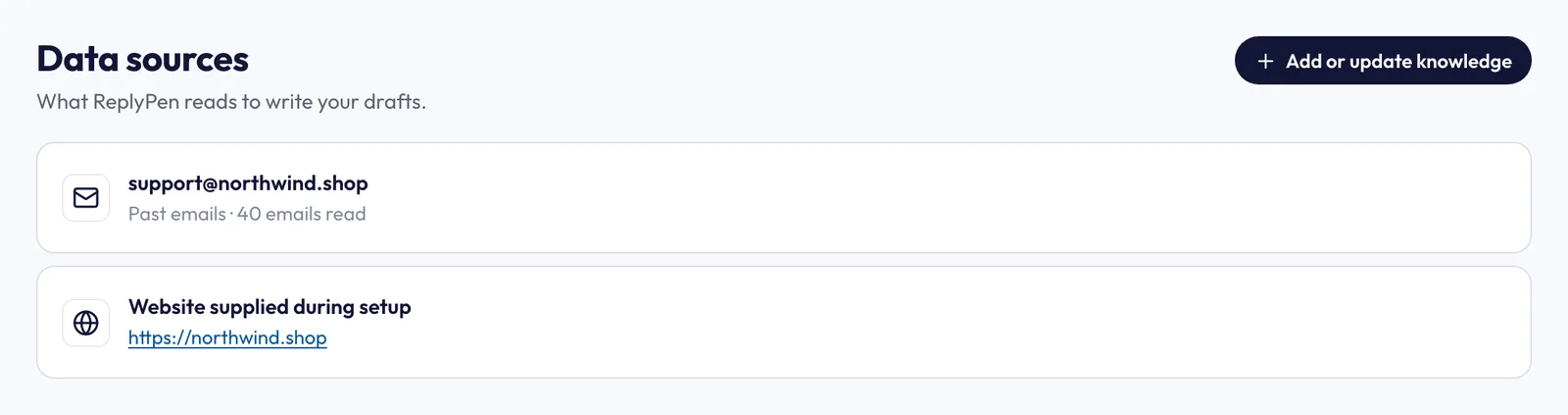
Data sources lists what ReplyPen reads.
- Go to Data sources and click Add or update knowledge.
- Share a web page, a public document link, or paste the information.
- ReplyPen shows the changes it proposes. Nothing is saved until you approve them.
Quick fix instead?
For a single fact you can also edit your Business profile directly. See correct what ReplyPen knows.